Workspace Navigation And Appearance
This guide describes the console follow-up in the runtime mpack development snapshot. It focuses on the main React console and desktop operation. Embedded applications and separately deployed interfaces may have their own navigation and appearance.
Global Directories And Cluster Workspaces
The global navigation has Clusters, Services, and administrator-only Management Packs entries. Clusters and Management Packs also appear near the top of a cluster's sidebar, above its dashboard, monitoring, services, hosts, and alerts.
Use global directories to choose an environment or manage definitions. Use the cluster workspace for service configuration and operational tasks. The selected cluster remains explicit in the application header.
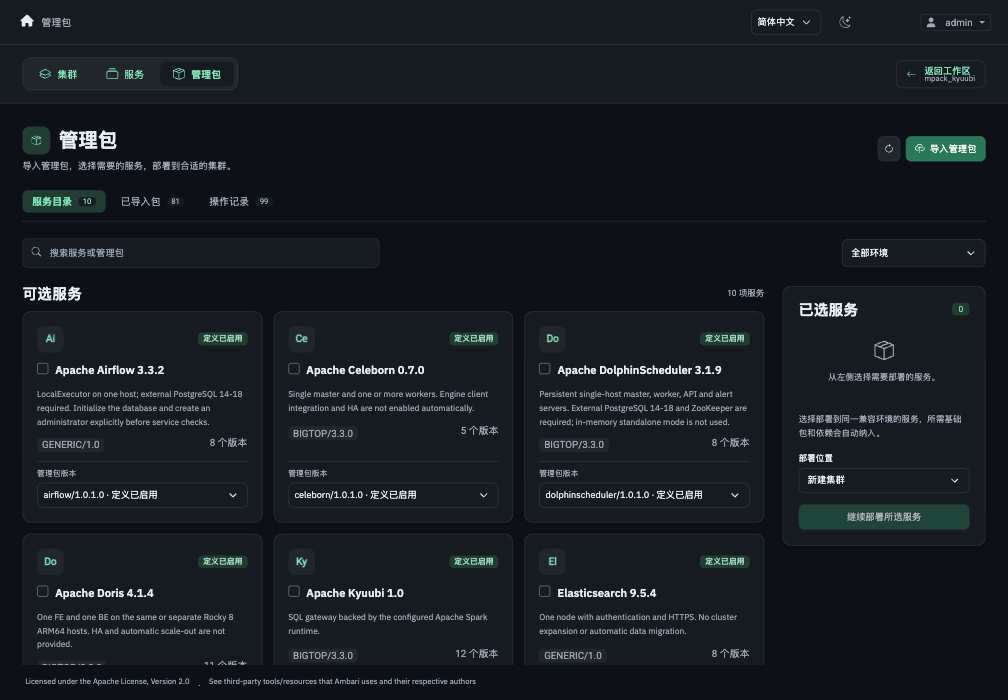
Menu visibility follows account permissions. A hidden administrator menu is not a missing installation, and manually entering its route does not grant access.
Return To The Page You Left
When you leave a cluster for a global directory, the console records the exact cluster pathname and query parameters for the current account in the browser session.
Return to workspace opens that recorded page. For example, leaving a service Configs page, visiting Clusters and Management Packs, then refreshing the global page can still return to the same service path and URL parameters.
The record is scoped to the account and browser session. A fresh session without a prior cluster page may have no return action. It restores navigation, not unsaved form contents. Continue to respect unsaved-change prompts, current permissions, and whether the cluster/service still exists.
Choose Light, Dark, Or System
Open Appearance using the sun/moon/display icon in the top bar, beside the language control. The menu is also available on the login page.
| Choice | Behavior |
|---|---|
| Light | Keep the light console regardless of OS appearance |
| Dark | Keep the dark console regardless of OS appearance |
| System | Follow the operating system's light/dark preference |
The explicit choice is a browser preference. It survives reloads and synchronizes with other tabs on the same origin. It does not modify cluster configuration or restart services. If browser storage is unavailable, changing appearance still works in the current tab.
The dark design uses graphite layers with light text and distinct selected states. IBM Plex Sans is served locally by the application; Chinese text uses available CJK sans-serif fonts, while configuration documents and code retain monospace presentation.
Appearance covers the main navigation, tables, configuration controls, common dialogs, chart axes/legends, status labels and pagination. Keep severity labels and numbers as well as color when interpreting a state.
Service Configuration And Version Controls
The service Summary and Configs tabs remain distinct. In Configs, choose the configuration group and version before editing. Version menus and configuration-group popup menus use the same active appearance.
The reference store's Configuration Files workflow presents full native documents while retaining Basic Settings for management inputs. Saving a new version still requires the appropriate configuration permission and any later restart/reload.
Host Alert Counts
A compact badge beside a host name shows the sum of its critical and warning alerts. Critical alerts take visual precedence; warning-only counts use their own presentation. Zero totals do not display a badge.
Hover or focus to identify the host and severity breakdown. Activating the badge opens that host's Alerts page; activating the host name opens its Summary. The badge uses a normal accessible link and can be activated from the keyboard.
Host health, maintenance state, pending restarts and alert count are separate indicators. A host health icon and an alert badge can therefore appear together.
Monitoring Interactions
Use Queries and Dashboards for refresh preferences, second-precision time ranges, query cancellation, empty/error feedback, target details and series visibility.
The query endpoint, data-collection target and displayed chart are different layers. Hiding a curve does not stop collection. An enabled datasource is configuration state, not proof that a connectivity test or every scrape succeeded.
Recover From A Stale Browser Page
After a development deployment replaces Web files, reload the page to load the new application. If an older browser tab still has the prior menus, compare the actual loaded build before diagnosing a missing feature.
A lost package-submission response must be recovered through its operation identity, not by repeatedly refreshing and resubmitting. For that workflow use management-pack recovery.